

UC3 · Step 1 of 5 — Open the dashboard
Jaspreet Singh · Production Supervisor · Dept 3630 · Tuesday, 14:21
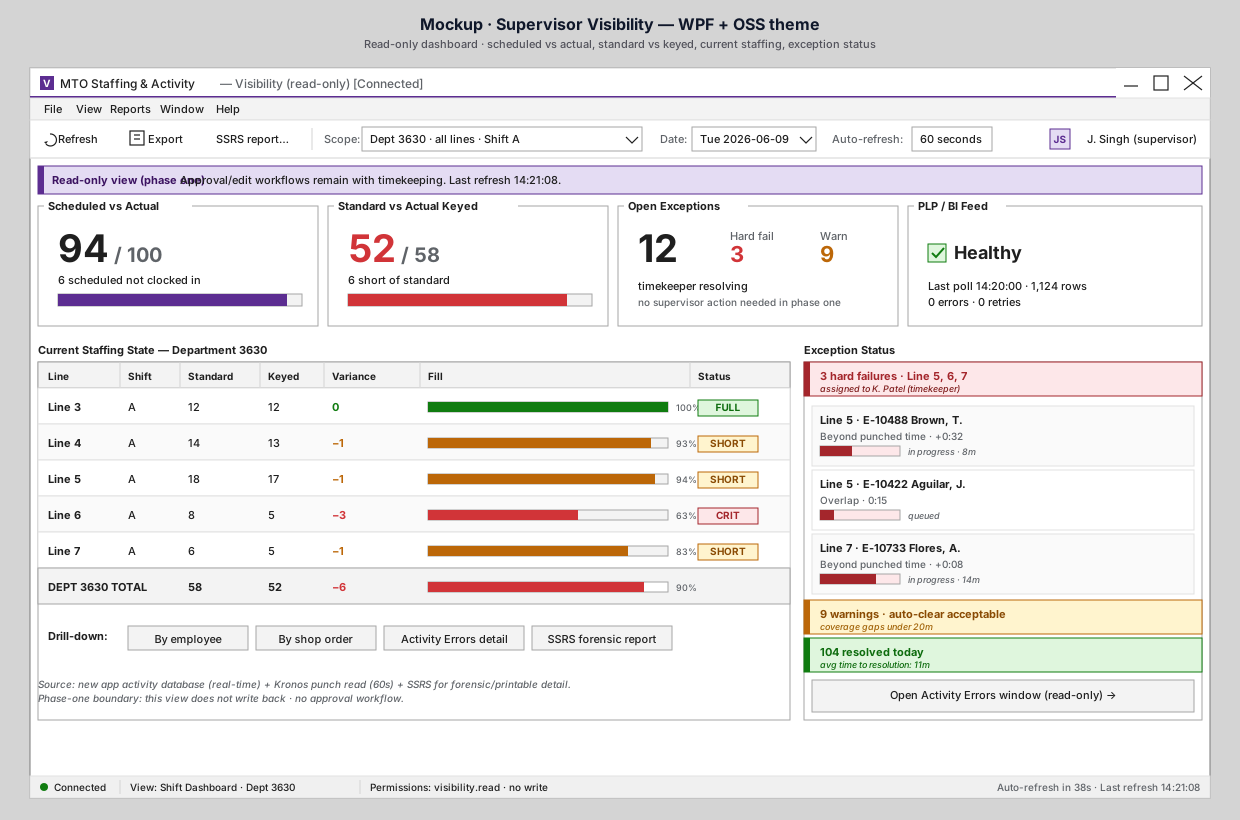
Jaspreet signs in. The app opens to his Shift Dashboard for Dept 3630. A purple banner at the top makes the phase-one posture explicit: this is a read-only view, approvals stay with timekeeping.
What to notice
- Title bar accent — purple. Visibility apps use the purple band so Jaspreet immediately knows he's in the read-only role, not in staffing or timekeeping. (Staffing is blue; timekeeping is teal.)
- Read-only banner. "Read-only view (phase one). Approval/edit workflows remain with timekeeping. Last refresh 14:21:08." Jaspreet doesn't have to wonder what he can do here — the app says so.
- Toolbar. Refresh, Export, SSRS report. No save, no edit, no approve.
- Scope and date. Defaults to his department (Dept 3630), all lines, current shift (A), today.
- Auto-refresh: 60 seconds. Live numbers without him doing anything.
- Status bar. Permissions visible at the bottom:
visibility.read · no write. The app and the AD role group agree on what he can do.
Why this design choice matters
A common worry is that giving supervisors a real-time view will turn them into bottlenecks ("I have to approve everything before it's saved"). The phase-one posture is the opposite: visibility without approval. Jaspreet sees what's happening; the staffing clerk and timekeeper handle it.
If a future phase adds supervisor approval workflows, they can be turned on without changing this view. The phase-one decision is to start with visibility only.
⬅ Use Case Index · 🏠 Demo Home · ▶ Next: Step 2 — Read the KPI tiles