

UC4 · Step 1 of 4 — Spot a spread-flagged order
Maria Rivera · Staffing Clerk · Dept 3630 / Line 5 · Tuesday, 06:03
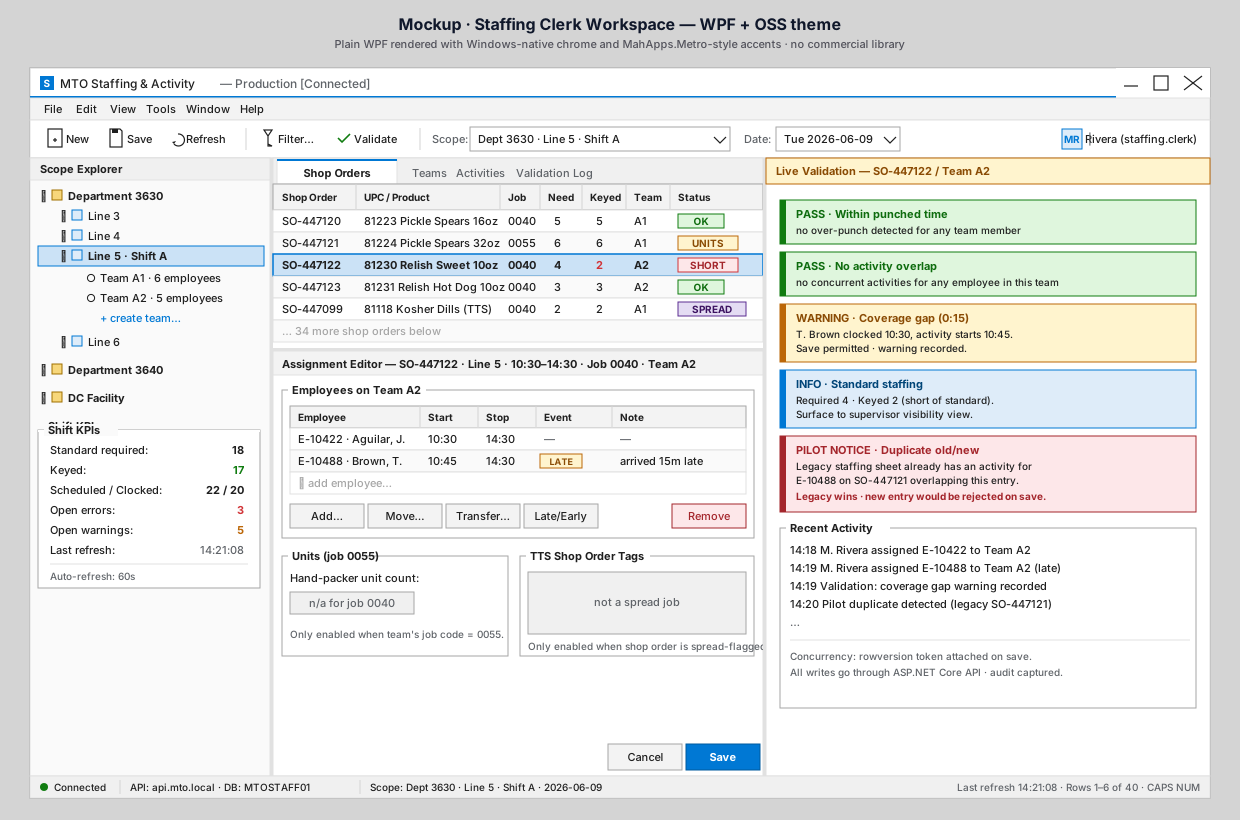
Back on the Staffing Board, Maria scans the shop-order list. Among
today's orders, one stands out with a purple SPREAD badge:
SO-447099 · 81118 Kosher Dills (TTS) · Line 5 · 06:00–14:30.
What to notice
- Status column · SPREAD badge. The purple badge tells Maria at a glance that this is a TTS order. She doesn't have to remember which orders are spread-eligible — the schedule data drives the flag.
- The order is currently
2 needed / 2 keyed— fully staffed. But the allocation across shop orders still has to be captured if she's adding or moving an employee. - The product description shows
(TTS)as a friendly inline hint as well — belt and suspenders. - Time window
06:00–14:30— a full shift. Spread orders are often full-shift because they're the "core" job for an employee who contributes to several shop orders during the day.
What Maria knows that the badge confirms
Maria already knows from years of staffing that Kosher Dills runs as a spread job — multiple SKUs come off the same line at the same time. What the badge gives her is: she doesn't have to remember to split the time by hand. The app will guide her through it.
What clicking the row will do
When Maria clicks SO-447099, the Assignment Editor opens, and the TTS
Shop Order Tags group box (which was n/a for the job 0040 orders we saw
in UC1) becomes the active, primary control.
⬅ Use Case Index · 🏠 Demo Home · ▶ Next: Step 2 — Key one activity, tag the shop orders