

UC4 · Step 3 of 4 — See the allocation preview
Maria Rivera · Staffing Clerk · Dept 3630 / Line 5 · Tuesday, 06:04
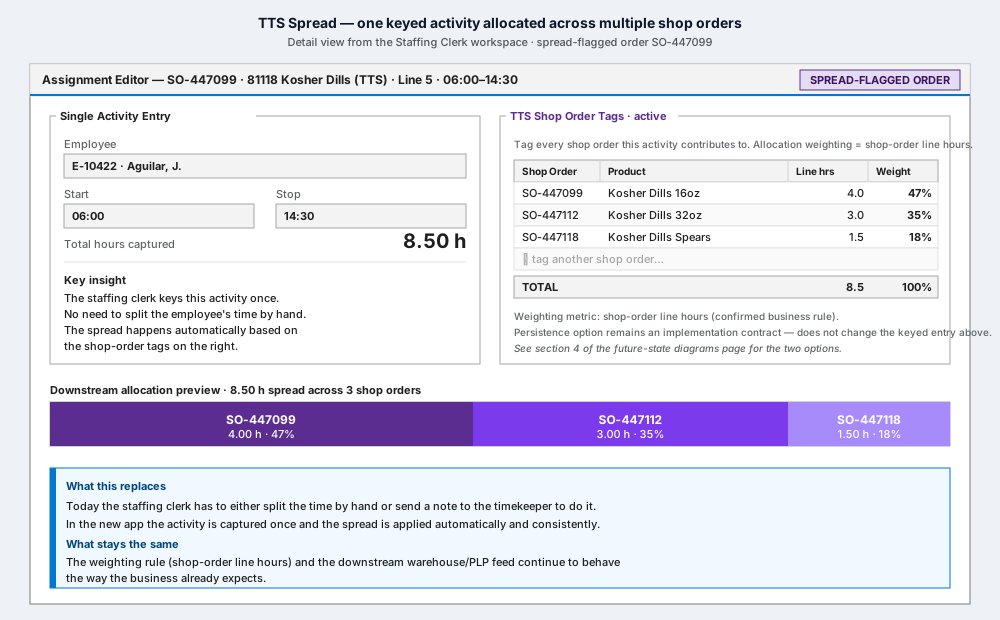
Below the tag editor, the Downstream allocation preview shows Maria exactly how her single activity will land downstream — before she saves.
What the preview shows
A single bar, divided into three colored segments, each labeled with the shop order, the allocated hours, and the percentage:
| Segment | Shop order | Allocated hours | Weight |
|---|---|---|---|
| Dark purple | SO-447099 | 4.00 h | 47% |
| Mid purple | SO-447112 | 3.00 h | 35% |
| Light purple | SO-447118 | 1.50 h | 18% |
| Total | 8.50 h | 100% |
This is the same 8.50 hours she captured in the single activity entry, allocated across the three tagged shop orders by line-hour weight.
Why a preview, and not just a save?
The preview lets Maria check the math without doing the math. If one of the weights looks wrong (maybe an order's line hours were misentered upstream), she'll catch it now — not three weeks later when payroll reconciles.
It also makes the rule visible. Maria, the supervisor, the timekeeper, the PLP analyst, and (eventually) the developer all see the same allocation the same way.
What gets recorded when she saves
That depends on the open implementation contract:
- Option A — persist spread rows in the new DB. The three rows above
are written to a
labor.activity_allocationstable. The warehouse poll reads them as-is. - Option B — persist source detail only. Only the single keyed activity and its three tag rows are written. The Mt Olive IT extract calculates the spread on the way out.
Either way:
- Maria's experience is the same.
- The downstream warehouse sees the same numbers.
- The business behavior (line-hour weighting) is identical.
The choice is about where the computation lives, not what it does.
What replaces the old workaround
| Today | With the new app |
|---|---|
| Maria splits the time by hand on the staffing sheet. | Maria tags shop orders; allocation is computed. |
| Or she writes a note to the timekeeper: "spread this 8.5 hours over these three." | The link is captured in the same flow as the activity. |
| Or the timekeeper later guesses from the staffing sheet what was intended. | No guessing. |
| Spread errors surface in the warehouse weeks later. | The preview catches them at capture time. |
⬅ Prev: Step 2 — Key and tag · Use Case Index · 🏠 Demo Home · ▶ Next: Step 4 — Recap