

UC1 · Step 1 of 5 — Open your scope
Maria Rivera · Staffing Clerk · Dept 3630 / Line 5 · Tuesday, 06:00
Maria signs in (Windows Integrated Authentication — same login she uses for every other plant system). The app opens to her default scope: Dept 3630, Line 5, Shift A. She doesn't have to navigate to it; the app remembers where she works.
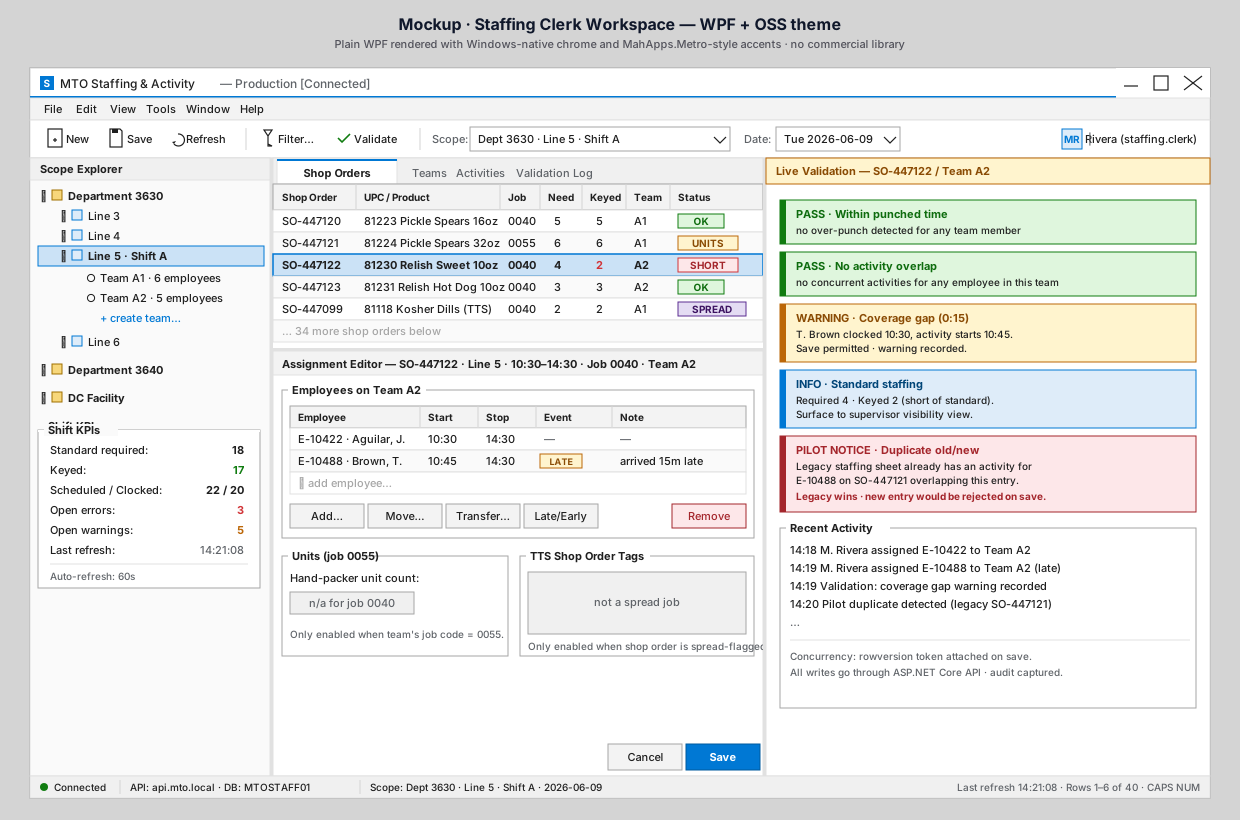
What to notice
- Left rail · Scope Explorer. Department 3630 is expanded, Line 5 · Shift A is highlighted in blue. Maria can drill into other lines or facilities if she has access to them, but her default lands her where she works.
- Center pane · Shop Orders tab. Today's planned orders for Line 5 ·
Shift A are listed: shop order, UPC, job code, jobs needed, jobs keyed,
team assignment, status. She can see at a glance which orders are
OK(fully staffed), which areSHORT, which needUNITScaptured (job 0055 hand-pack), and which areSPREAD-flagged (TTS). - Right rail · Live Validation. Currently empty — she hasn't selected an order yet. As soon as she does, this panel will start checking her work against Kronos punches and the rule set.
- Bottom · Shift KPIs. At a glance: 18 employees required to meet standard, 17 already keyed, 22 scheduled / 20 clocked in, 3 open errors, 5 warnings. Maria knows immediately whether the shift is on track before she starts editing.
Why it matters
Today, Maria has to look at the staffing sheet, the schedule print-out, and sometimes a Kronos punch report to assemble the same picture this single screen gives her. The point of this workspace is not to replace her judgment — it's to put everything in front of her so she can spend her time deciding rather than gathering.
⬅ Use Case Index · 🏠 Demo Home · ▶ Next: Step 2 — Pick and assign